Introduction
Have you ever tried to print a JPG logo. Thought, “Why does this look so bad?” You are not alone.
It might look perfectly fine on your screen. The moment you scale it up for a t-shirt, banner or even a decent-sized print it starts falling apart.
You get edges, weird pixels and it is just not sharp.
That is because JPG files are not built for resizing.
The good news is that you can fix this and it is not as complicated as it sounds.
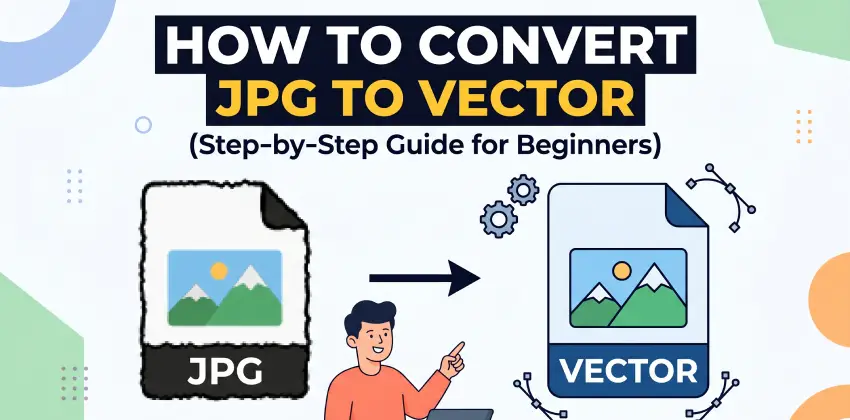
In this guide I will walk you through how to convert a JPG into a vector file even if you have never done anything like this before.
So What Is a JPG?
Let us keep it simple.
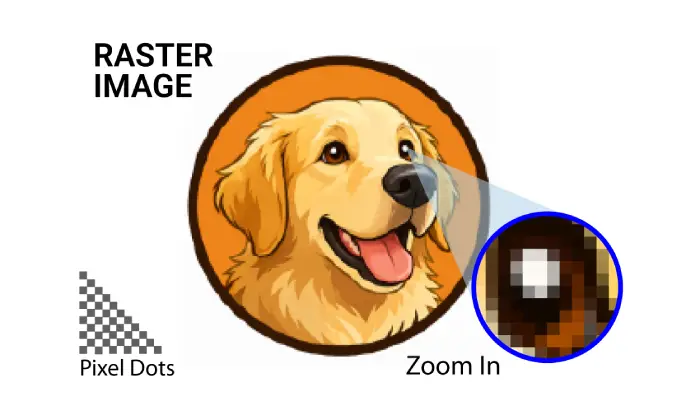
A JPG is made of dots called pixels.
When you zoom in enough you can actually see them squares making up the whole image.
That is totally fine for photos in fact JPG is great for pictures.
For logos it is not so much.
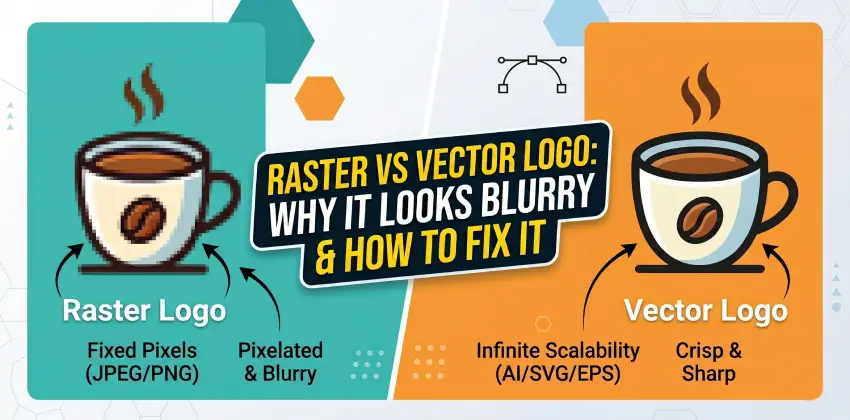
Because once you stretch it beyond its size those pixels stretch too and that is when things start looking rough.
What Is a Vector File and Why Is It Better?
Now here is where things change.
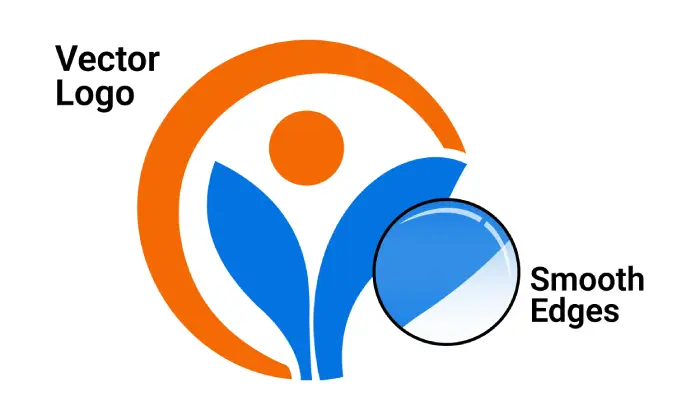
A vector file does not use pixels instead it uses paths, mathematical lines and curves.
I know that sounds technical. Here is what it means in real life:
You can scale a vector logo as much as you want and it stays perfectly sharp.
You can use it for a business card. It will be crisp.
You can use it for a billboard. It will still be crisp.
There is no blur, no pixelation.
Why You Might Need to Convert JPG to Vector
If you are running a business designing merch or working with print shops this step is almost unavoidable.
You will need a vector file if you want to print your logo on shirts or packaging create banners or signage send files to a printer or keep your branding looking consistent everywhere.
Basically if quality matters, a little you will want a vector version.
Method 1: Using Adobe Illustrator
Alright let us get into the process.
If you have Adobe Illustrator this is probably the method you will try.
Step 1: Open Your JPG
Just drop your JPG into Illustrator, nothing here.
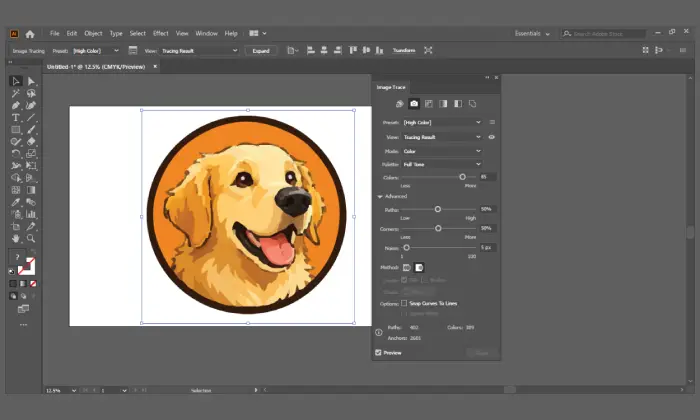
Step 2: Click Image Trace
Once your image is selected you will see an option called Image Trace.
Click it and Illustrator will try to convert your image
Step 3: Pick a Setting
You will see presets like Black and White Logo, 3 Colors, High Fidelity Photo.
Try a couple. See what looks closest to your original.
Step 4: Hit Expand
This step actually turns your image into vector paths.
Before this it is a preview.

Step 5: Clean It Up
This is where most people get stuck.
Auto-trace is not perfect you will probably notice edges, extra shapes slightly off colors.
So you will need to tweak things and yeah this part takes a bit of patience.
Method 2: Free Tools
No Adobe Illustrator, no problem.
You can try tools like Inkscape or some online converters.
They work in a way upload your JPG click convert download the result, simple enough.
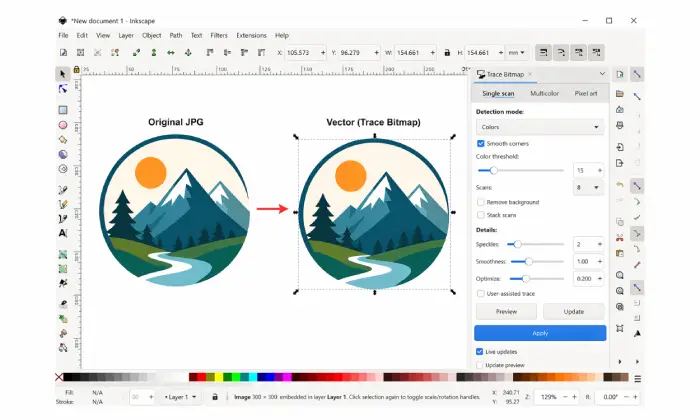
But here is the honest truth the results are hit or miss.
For icons they might be okay for logos with text or detail not great.
Method 3: Let a Professional Handle It
If you have tried the tools and thought “this does not look right” you are not imagining it.
Good vector files are usually made manually that means someone redraws your logo using curves and clean lines not just clicking a button.

And the difference shows you get smooth edges, accurate shapes, clean lightweight files, something that actually looks professional in print.
Common Mistakes People Make
A things to watch out for using a tiny JPG if your original file is low quality the result will not be great either.
Trusting auto-trace much it is a starting point, not the final result.
Skipping the cleanup step this is where quality really comes from.
Quick JPG vs Vector Comparison
| Feature | JPG | Vector |
|---|---|---|
| Quality when resized | Gets blurry | Stays sharp |
| Best for | Photos | Logos |
| Editing | Limited | Easy |
So Which Method Should You Choose
Here is the simple breakdown just experimenting try free tools, comfortable with design software use Adobe Illustrator need it to look perfect go professional.
No need to overthink it.
Final Thoughts
Converting a JPG to vector is not a nice to have it is kind of essential if you care about how your brand looks.
You can do it yourself for simple designs but if your logo matters and it probably does getting a clean properly made vector file is 100% worth it.
Ready to Convert Your Images?
Get started with our professional vector conversion service today.
Get a Quote Now